The Best External GPUs for Laptops: A Comprehensive Guide
5 April 2026
If you're like most laptop users, chances are you've hit that dreaded wall—your machine can’t quite keep up when you throw heavy graphics tasks its way. Whether you're gaming, video editing, 3D rendering, or just craving desktop-level GPU performance without giving up portability, an eGPU (external GPU) might just be your new best friend.
In this guide, I’m breaking down everything you need to know about external GPUs and helping you pick the best one for your setup. So grab a coffee, kick back, and let’s dive into the world of eGPUs.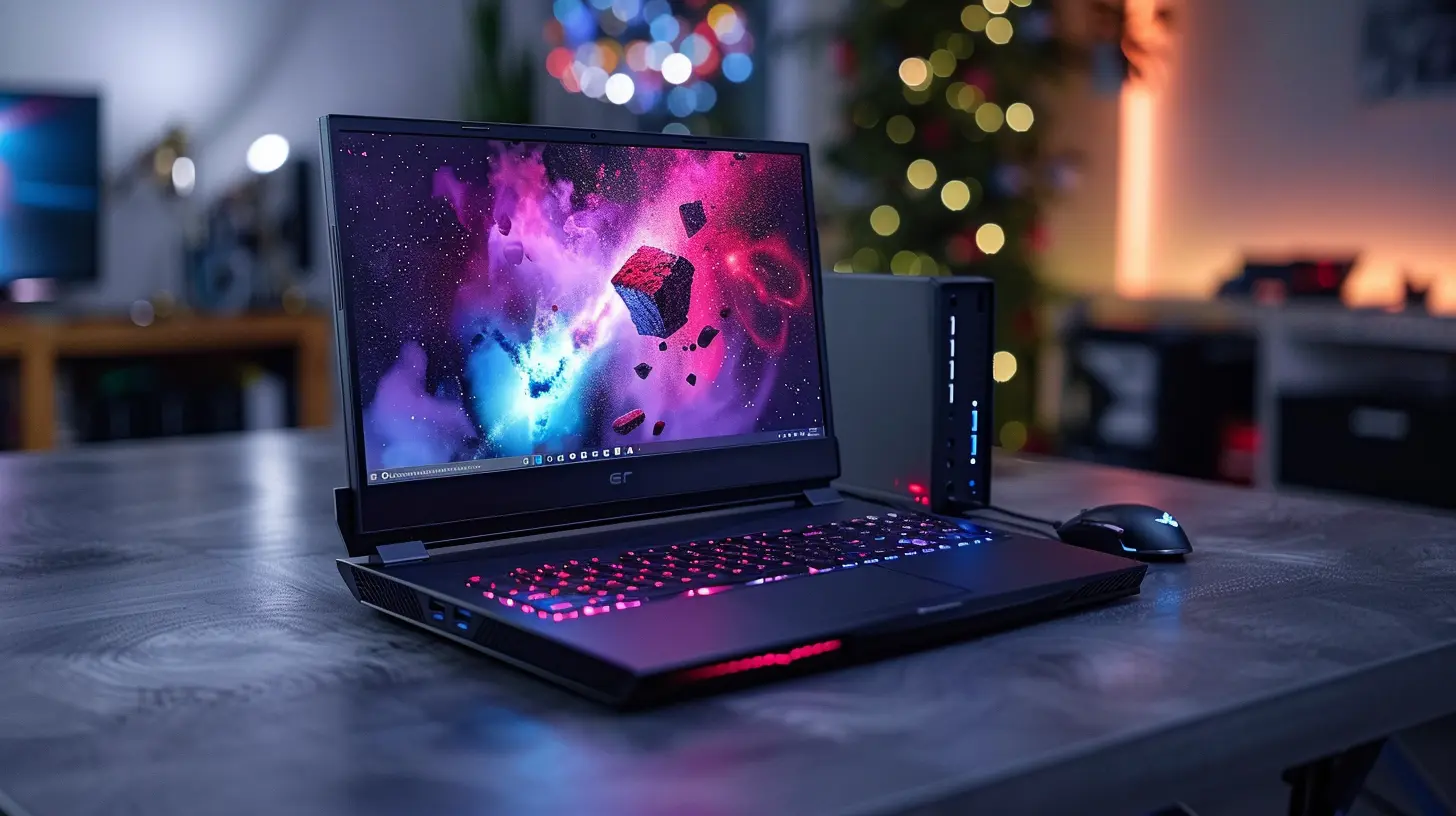
💡 What is an External GPU (eGPU), Anyway?
Imagine your laptop is a city car—great for commuting and portability, but not exactly built for drag racing. Now, imagine strapping a rocket to it. That’s kinda what an eGPU does.An external GPU is basically a separate box that houses a full-sized desktop graphics card. It connects to your laptop (usually via Thunderbolt 3 or 4), and boom—you’ve got access to way more graphical horsepower than your laptop's built-in GPU could ever dream of.
Pretty cool, right?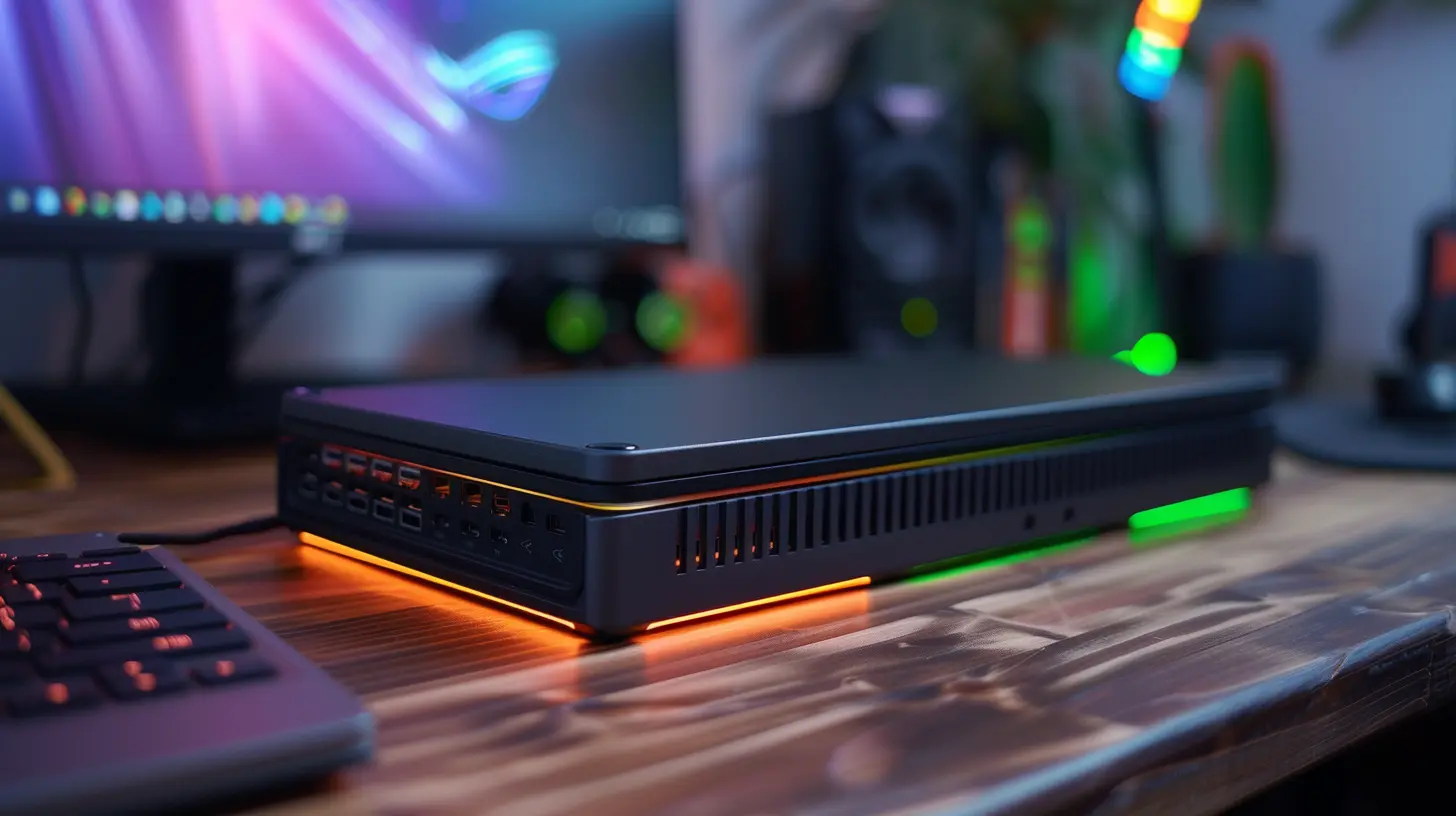
🚀 Why You Might Want an eGPU
Still on the fence about whether you really need one? Let's break it down:- Gaming: Want to run AAA titles on your ultrabook at ultra settings? You’ll need more than integrated graphics.
- Creative Workflows: Adobe Premiere Pro, Blender, After Effects—they all love a good GPU boost.
- Future-Proofing: Upgrade your GPU without having to ditch your entire machine.
- Portability + Power Combo: Keep your sleek, lightweight laptop for everyday use, and plug in the eGPU at home or work for next-level performance.
But wait—before you go rushing to buy one, let’s look at the nitty-gritty.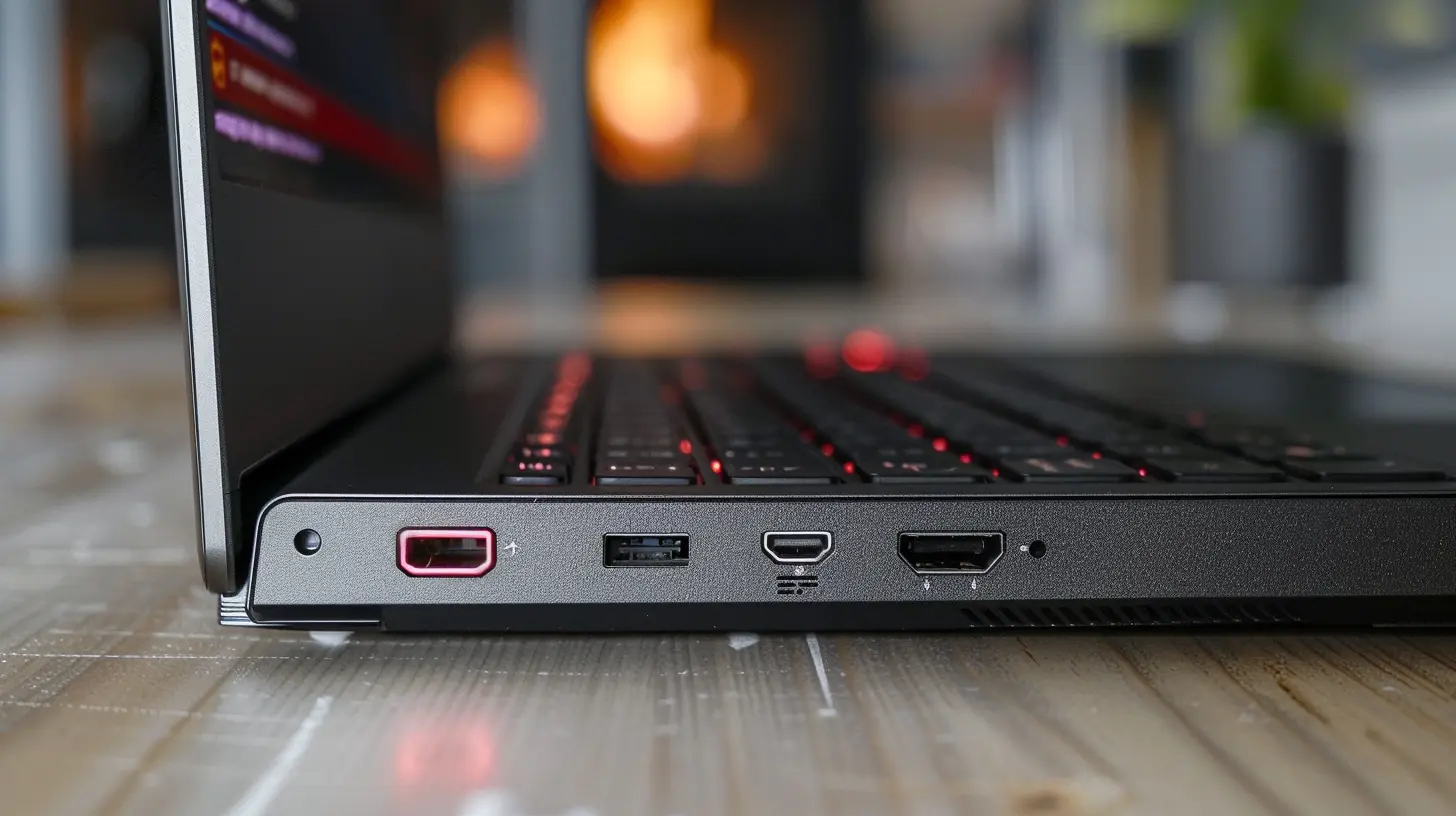
🔌 How Do External GPUs Work?
Here’s how it goes down, technically-speaking.An eGPU connects to your laptop via a high-speed data port—most commonly Thunderbolt 3 or 4. Inside the eGPU enclosure is a graphics card (you can buy it pre-installed or add your own), and when you plug it in, your laptop starts using it as a graphics accelerator.
Quick heads-up: Not all laptops support eGPUs. You'll want to ensure your machine has a Thunderbolt 3/4 port and compatible BIOS or OS support. Some Windows laptops throw tantrums, while macOS has its own compatibility list.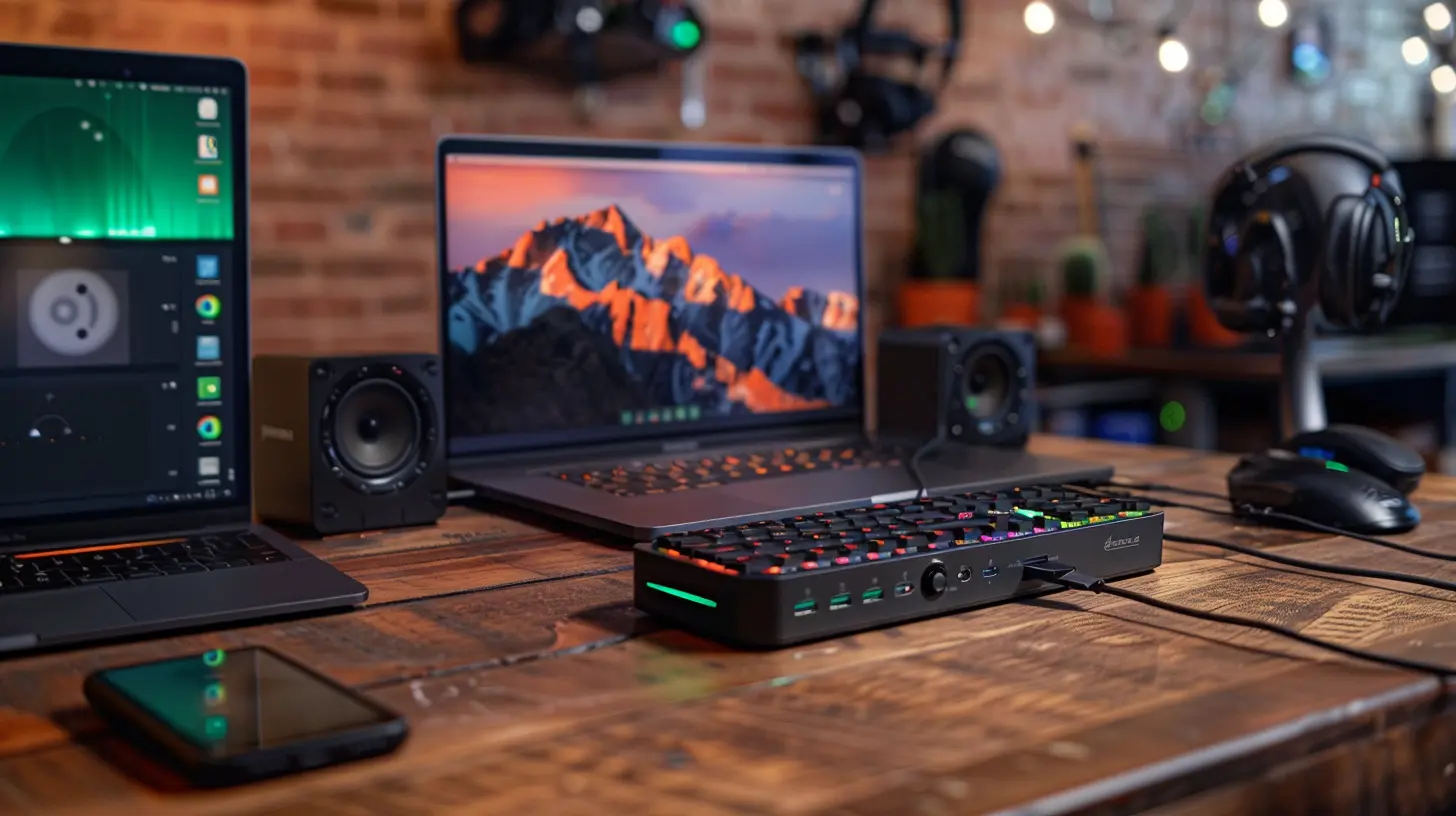
🛠️ What to Look for in an eGPU
Okay, time for the fun stuff. Choosing the right external GPU isn’t just about grabbing the fanciest thing on the shelf. There are a few key factors to consider:1. Interface – Thunderbolt is King
Thunderbolt ports offer incredibly fast data transfer (up to 40 Gbps). The faster the connection, the less bottleneck you'll experience between your laptop and the GPU.If you're on USB-C or anything less than Thunderbolt, you’ll be bottlenecked. Badly.
2. GPU Compatibility
Some eGPU enclosures come with GPUs included; others are build-it-yourself. Either way, make sure the enclosure supports the card’s power and size requirements.And hey, keep thermals in mind—if you’re jamming a beastly RTX 4090 into a tight box, you’ll want solid cooling.
3. Power Supply (PSU)
External GPUs need considerable juice. Most enclosures pack a PSU (ranging from 300W to 700W), and you’ll want something that can comfortably handle the card you toss in.4. Upgradability
Ask yourself: Can I swap out the GPU later? The best eGPUs let you upgrade down the line.5. Build and Portability
Some are portable, most aren’t. Consider how often you’ll move it around. Some units even double as docking stations—very handy!🏆 The Best External GPUs for Laptops in 2024
Let’s get to the heart of it—the top eGPUs you can buy today. I’ve broken it down into categories so you can pick what fits your needs best.🔥 1. Razer Core X – Best All-Around Choice
Price: Around $400 (without GPU)If Razer made a Batmobile for GPUs, this would be it. The Razer Core X supports a huge range of cards, has excellent cooling, and packs a built-in 650W PSU.
- Thunderbolt 3 interface
- Supports full-sized NVIDIA and AMD GPUs
- Compatible with Windows and macOS (Big Sur or later)
- Solid aluminum build
Want plug-and-play with minimal fuss? This is it.
Pros:
- Huge GPU support
- Excellent build quality
- Mac-compatible
Cons:
- Heavy (about 15 lbs with GPU)
- No extra ports (USB/Ethernet)
🚀 2. Akitio Node Titan – Best for Creatives
Price: Around $330 (no GPU)This one’s an Apple favorite—and for good reason. The Node Titan is beloved by video editors and pros. It’s compact, quiet, and certified for macOS.
- Thunderbolt 3 connection
- 650W PSU
- Supports full-length, double-width GPUs
Pros:
- Compact and quiet
- Great macOS support
- Tool-free access
Cons:
- No USB hub or Ethernet
- Basic design
🎮 3. ASUS ROG XG Mobile – Best Portable eGPU
Price: Around $1,400 (includes GPU)Alright, this one's really niche. It only works with ASUS’s ROG Flow series laptops (like the X13 or Z13), but if you have one, it’s amazing.
- Tiny form factor
- Built-in RTX 3080
- Doubles as I/O hub (USB, HDMI, DisplayPort)
Pros:
- Ultra-portable
- Great performance
- Built-in docking capabilities
Cons:
- Only works with ASUS ROG Flow laptops
- Extremely pricey
💼 4. Sonnet eGFX Breakaway Box 750 – Best for Professionals
Price: Around $300 (no GPU)Sonnet's Breakaway Box is a no-nonsense workhorse. Creators, designers, and professionals love its performance and whisper-quiet operation.
- Thunderbolt 3
- 750W PSU
- Supports very high-end GPUs (even the RTX 40 series)
Pros:
- High wattage for power-hungry cards
- Quiet fans
- Stable and reliable
Cons:
- Bulky design
- Lacks extra ports
🙌 5. Gigabyte AORUS Gaming Box – Best Compact Option (with GPU)
Price: Varies ($700–$1400)This little beast comes pre-loaded with an NVIDIA GPU (RTX 3060 to 3080 options available), and it’s probably the smallest eGPU you’ll find with that kind of power.
- Thunderbolt 3
- Built-in fans and PSU
- Compact design
Pros:
- Includes GPU
- Small footprint
- Extra I/O ports
Cons:
- Pricier than DIY setups
- Limited upgradeability
🤯 Are There Any Downsides?
Here’s the deal—while eGPUs are awesome, they’re not perfect.- Price: Between the enclosure and GPU, costs can creep up quickly.
- Compatibility Issues: Some laptops play nicer than others. Always check before you buy.
- Performance Bottlenecks: Even with Thunderbolt, you're not getting full PCIe x16 speeds. Expect up to 10-15% less performance compared to a desktop setup.
- Portability: Most eGPUs aren’t exactly “grab-and-go” friendly.
But for many users, the benefits far outweigh the drawbacks.
🧩 Setting Up Your eGPU
Don’t worry—it’s not rocket science. Here’s a quick rundown:1. Install the GPU in the enclosure (some come pre-installed).
2. Plug the enclosure into your laptop via Thunderbolt.
3. Install drivers (Windows often auto-detects them; macOS support is more plug-and-play if compatible).
4. Change display settings if needed—decide whether the laptop uses the eGPU for internal or external display.
That’s it! You’re ready to roll.
💬 Final Thoughts: Is an eGPU Worth It?
If you’re stuck with a laptop but crave more graphical firepower—absolutely.eGPUs are a brilliant way to extend the life of your device, boost productivity, and enjoy high-performance gaming or creative work—without investing in a whole new desktop rig.
Just remember: match the eGPU to your needs and budget, and you’ll be golden.
✅ TL;DR (Too Long; Didn’t Read)
- External GPUs give laptops desktop-level graphical performance.- You need Thunderbolt 3 (or 4) for best results.
- Top choices include Razer Core X, Akitio Node Titan, and Gigabyte AORUS Gaming Box.
- They’re ideal for gaming, content creation, and extending laptop lifespan.
- Watch out for compatibility and pricing before buying.
all images in this post were generated using AI tools
Category:
Computer HardwareAuthor:

Reese McQuillan
Discussion
rate this article
2 comments
Diana McKenzie
In the realm of graphs and pixels bright, External GPUs soar, igniting the night. Power unleashed, laptops transformed, In this guide, new worlds are born.
April 10, 2026 at 10:22 AM
Reese McQuillan
Thanks for capturing the excitement! Glad you enjoyed the guide.
Wyatt McCallum
Great guide! External GPUs can really transform laptop performance. It's exciting to see how they enhance gaming and creativity on the go. Looking forward to trying out some of these recommendations!
April 6, 2026 at 4:46 AM
Reese McQuillan
Thank you! I'm glad you found the guide helpful. Enjoy exploring the potential of external GPUs!