How to Choose the Right Motherboard for Your Custom PC Build
9 May 2026
Building your own PC is like being both the architect and the builder of your digital dream house. Every part you choose matters—but none more so than the motherboard. Think of it as the foundation. You wouldn’t want to build a mansion on sand, right? Yep, the same logic applies here.
But when it comes to choosing the right motherboard, things can get a little... overwhelming. There are dozens of options, chipsets, sockets, form factors—and let’s not even talk about acronyms like PCIe, VRM, and M.2 that can sound like a different language.
So, if you’re about to dive into your custom PC build and have no clue which motherboard to go with, you’re in the right place. Let’s break it down in simple, real-talk terms so you can feel confident about your choice.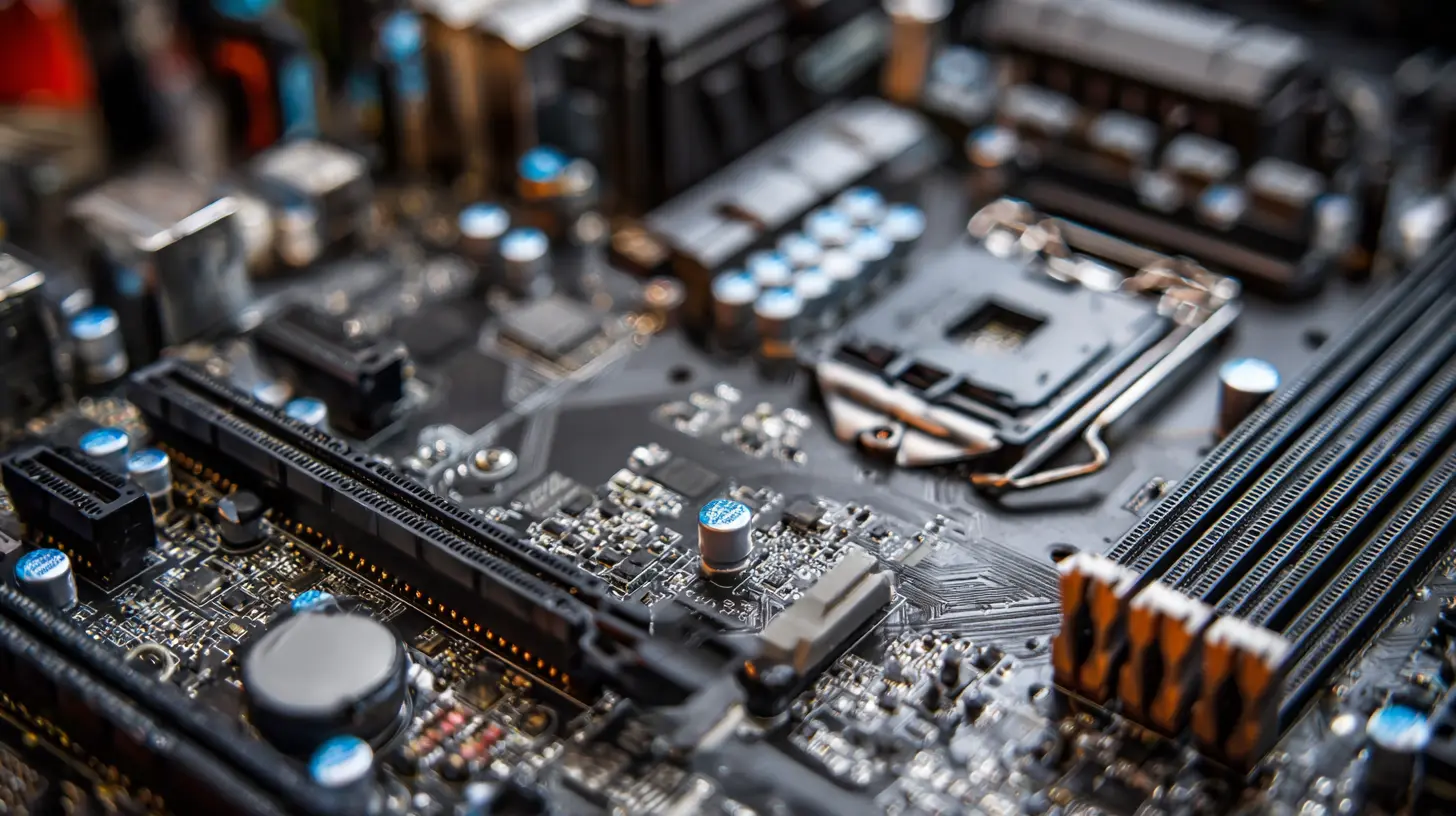
Why the Motherboard Matters More Than You Think
Let’s get one thing straight: the motherboard doesn’t make your PC faster on its own. It’s not like slapping a better GPU or CPU into your rig. But—and this is a big “but”—it determines what kind of parts you can use, how future-proof your build is, and whether your system will run stable or crash when you try to game, code, or stream.In short, the motherboard is the unsung hero. It's the central hub connecting everything: your processor, RAM, storage, GPU, and all those USB gadgets.
If you cheap out here or make a wrong pick, you might find yourself stuck with hardware that doesn’t work together—or worse, risking long-term reliability.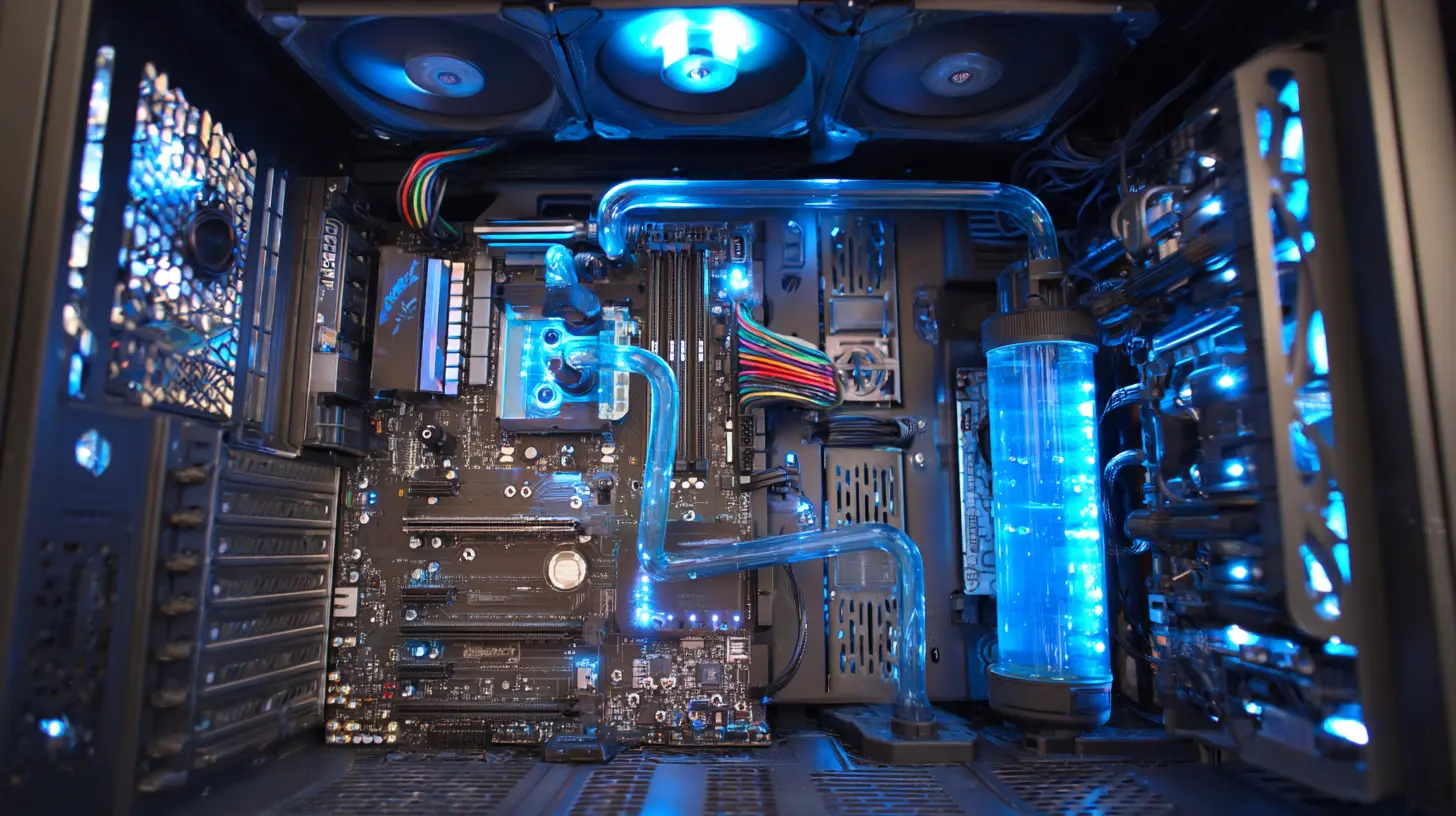
Step 1: Know Your CPU First
Before you even look at motherboards, pick your CPU. Why? Because the CPU you choose determines the kind of motherboard socket and chipset you’ll need.Intel or AMD?
This is the first fork in the road. Both brands have awesome offerings, and the rivalry is real. If you’re leaning toward Intel (like a Core i5 or i7), you'll be looking at LGA sockets like LGA1700 for newer 12th and 13th-gen CPUs. AMD Ryzen chips, on the other hand, typically use AM4 or the newer AM5 sockets.? Pro Tip: You can’t just slap an AMD CPU into an Intel motherboard and vice versa. So, CPU first. Always.
Matching Sockets
Think of it like puzzle pieces—the CPU and motherboard socket need to match exactly. No exceptions.For example:
- Intel Core i7-13700K → Needs an LGA1700 motherboard
- AMD Ryzen 7 5800X → Needs an AM4 motherboard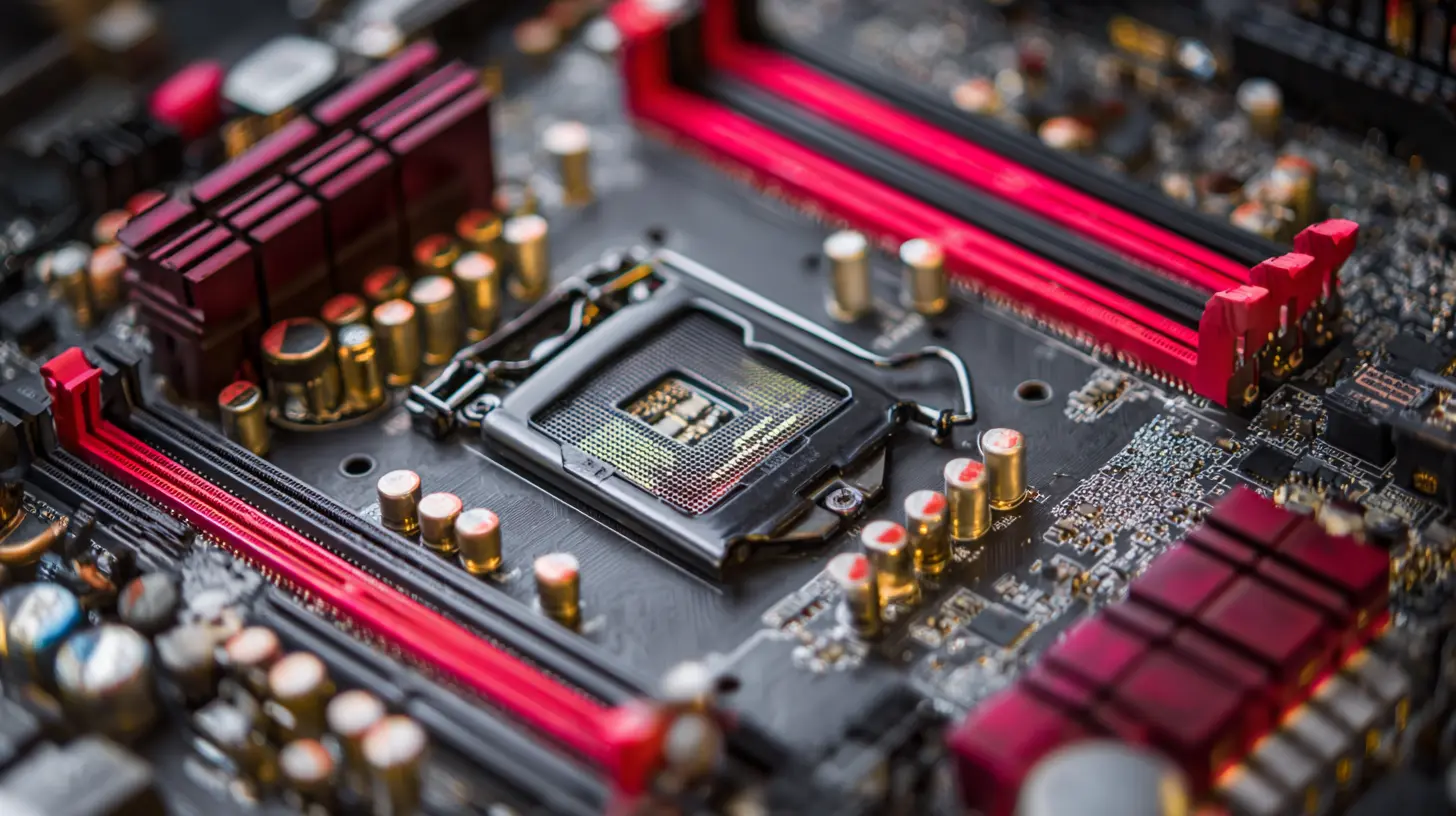
Step 2: Pick Your Form Factor (Size Does Matter)
Motherboards come in different sizes. Your choice here depends on how big your case is and how many features you want.Here's a quick breakdown:
1. ATX (Standard Size)
- Most common and popular- Tons of features, ports, and slots
- Best for gaming and multitasking builds
2. Micro-ATX (Smaller)
- Slightly more compact, fits in smaller cases- Fewer expansion slots
- A nice balance of features vs. space
3. Mini-ITX (Smallest)
- Great for small form factor builds- Limited ports and expansion
- Can be tricky for first-time builders
✨ If you're building a full-blown gaming rig or workhorse PC, go with ATX. If space matters more to you than expansion, Mini-ITX might be your jam.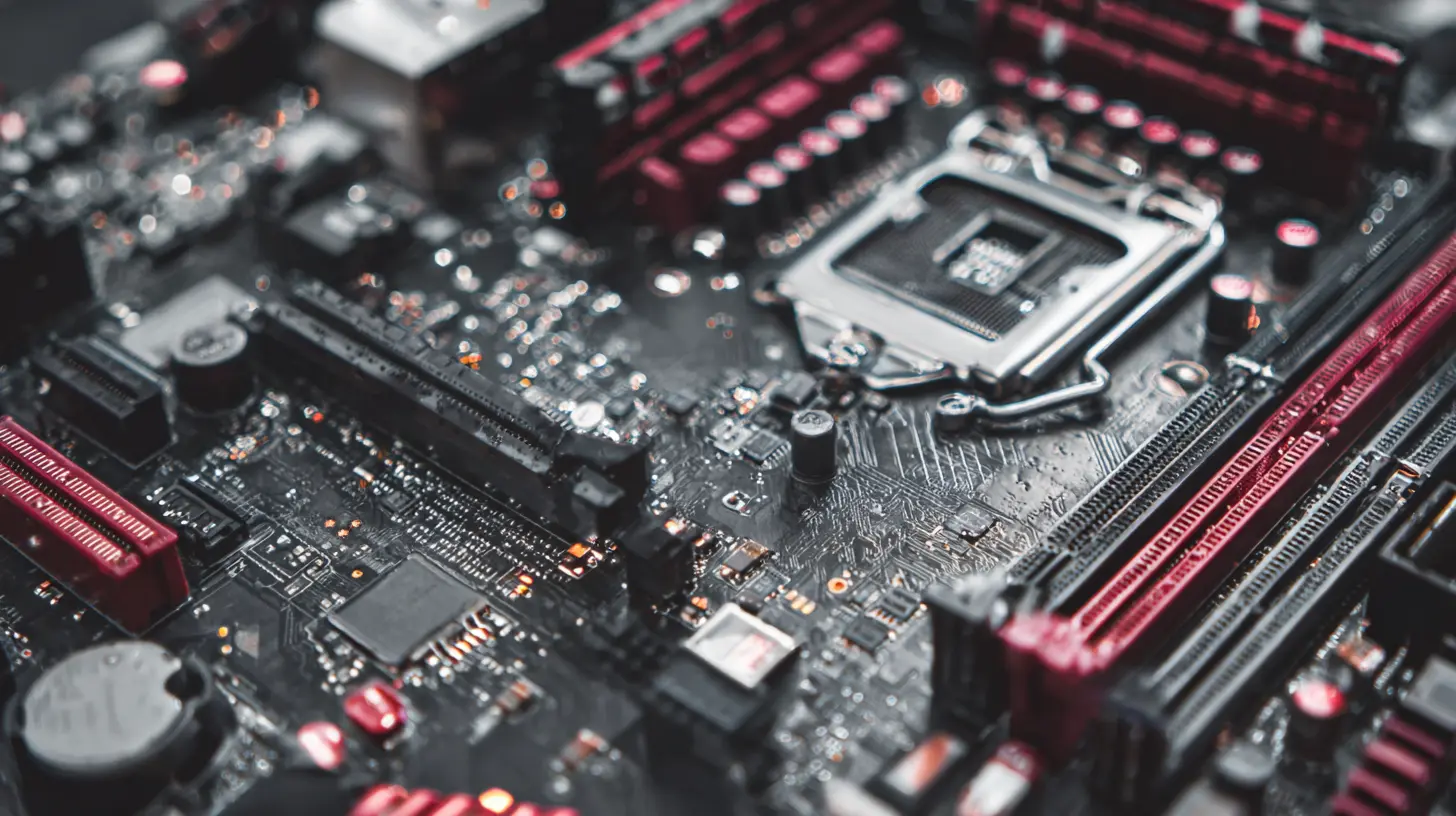
Step 3: Understand the Chipset
Chipsets are like the brainpower behind your motherboard. They control what features your motherboard supports.For Intel
- Z-Series (like Z690, Z790): Best for overclocking and high-performance builds. Ideal for gamers and power users.- B-Series (like B660, B760): Mid-range, solid features, no overclocking (in most cases).
- H-Series (like H610): Basic boards. Good for budget or office PCs.
For AMD
- X-Series (like X670, X570): Full feature set, overclocking support. Great for enthusiasts.- B-Series (like B550, B650): Mid-range, good value, some overclocking.
- A-Series (like A520): Basic and budget-friendly.
?️ Want to tweak your settings and push performance? Go for a Z- or X-series board. Just need something that works well out of the box? B-series boards are your friend.
Step 4: RAM Compatibility – DDR4 vs DDR5
RAM is your PC’s short-term memory, and your choice of motherboard affects what type—and how much—you can use.DDR4 vs DDR5
- DDR4: Still super popular, more affordable- DDR5: Faster, future-proof (but pricier)
Not all motherboards support both. In fact, most don’t. So, check the specs. If you’re going with DDR5 RAM, make sure the board supports it. Also, look at how many RAM slots it has and the max supported capacity (most folks are good with 16–32GB, but content creators may want 64GB+).
Step 5: Expansion Slots & GPU Compatibility
Wanna add a beefy graphics card? Capture card? Wi-Fi card? You'll need PCIe slots—and the right kind.Most modern GPUs use a PCIe x16 slot. If you're rocking a high-end GPU like the RTX 4090, make sure your motherboard has enough space and power support.
Also, check how many slots the GPU takes up (they're chonky these days), and whether it will block other expansion cards or SATA ports.
? Heads up: Some small form factor boards (like Mini-ITX) only have one PCIe slot. So if you want to expand later, you’ll be limited.
Step 6: Storage Options – SATA, M.2, and NVMe
Gone are the days when spinning hard drives ruled. Now, M.2 NVMe SSDs are the kings—blazing fast with zero cables.Your motherboard should have M.2 slots (the more the merrier), and bonus if they support PCIe Gen4 or Gen5 for those next-level speeds.
But don’t forget about traditional SATA ports if you want to throw in extra hard drives or 2.5" SSDs for bulk storage.
Step 7: Rear I/O & Internal Ports
Take a look at the rear I/O and internal connectors. This is where everyday usability comes in.Ask yourself:
- How many USB ports do I need?
- Do I want USB-C?
- Am I using an external DAC or audio setup?
- Do I need Ethernet or Wi-Fi built in?
- What about HDMI/DisplayPort for integrated graphics?
Also, keep an eye out for headers for front panel USB ports, RGB control, and fan connectors.
? Quick Tip: Some budget boards skimp on USB ports. Don’t get stuck with two when you need five.
Step 8: Power Delivery (VRMs) and Overclocking
If you’re planning to overclock your CPU, then power delivery is something you can’t ignore.VRMs (Voltage Regulator Modules) matter—a lot. They affect how stable your system is when under load. More phases = better power delivery = better overclocking potential.
Also, look for heatsinks over the VRMs. They help keep temps in check.
If you’re not into overclocking? Don't stress too much here. But still, don't cheap out.
Step 9: BIOS Features & Updates
A motherboard’s BIOS is like the control room of your PC. A well-designed BIOS makes tweaking settings easy—even for newbies.Some boards offer flash BIOS features, which let you update the BIOS without even installing a CPU. That can be a game-changer if you're using new-gen CPUs with an older board.
Step 10: Budget & Value – Know Where to Splurge
Not all builds need a $400 motherboard. But don’t just buy the cheapest one either.Here’s the rule: don’t overspend on features you won’t use—but don’t limit yourself by cutting corners either.
Budget Breakdown Example:
- $80–$120: Basic, reliable boards for entry-level CPU/RAM combos- $130–$200: Great value for gamers, content creators
- $200+: Premium boards for enthusiasts, overclockers, and future-proofing
? Ask yourself: Will I use that extra M.2 slot? Am I ever going to overclock? Will I upgrade in a year or ride this build for five?
Final Thoughts: Your Best Fit Depends on You
Choosing the right motherboard is all about balance. It’s finding the sweet spot between what you need, what you want, and what you’re willing to spend.Make a checklist of your priorities:
- Gaming performance?
- Expandability?
- Small or large case?
- Budget-friendly or premium?
- Future-proof features?
Then match the motherboard that ticks the most boxes.
Trust me—you’ll thank yourself later when everything fits perfectly, boots on the first try (fingers crossed), and runs like a dream.
And hey, if you ever hit a wall or can’t decide between two models, hit up PCPartPicker or Reddit’s buildapc community. There’s a whole army of fellow builders out there ready to help.
Now go out there and build something epic. You've got this.
all images in this post were generated using AI tools
Category:
Computer HardwareAuthor:

Reese McQuillan
Discussion
rate this article
2 comments
Derek McNair
Choosing the right motherboard is crucial for a solid custom PC. Don't settle for mediocre. Focus on your needs, whether gaming, content creation, or budget constraints. Invest wisely and future-proof your setup.
July 13, 2026 at 10:53 AM
Zeal Estes
Oh, sure, just pick a motherboard like it's a flavor of ice cream. Who needs compatibility, features, or future upgrades anyway... Live dangerously!
May 13, 2026 at 4:52 AM
Reese McQuillan
Choosing the right motherboard is definitely important. It's not just about picking a flavor; it's about finding the right fit for your needs. Compatibility and features matter more than many realize.